Keep what you like about visual Markdown.
Typora’s Live Preview renders Markdown as you write, reducing the need for a separate preview pane. It also offers Source Code Mode. If that focused writing experience works for you, it’s a useful starting point for deciding what an alternative should keep.
If your next priority is a native Mac document workflow with rendered and source editing visible together, try Zizeg with one of your own files. You’ll learn more from making a real change than from comparing long feature lists.
Compare the decisions you make every day.
| Your priority | What to try in Zizeg |
|---|---|
| Edit what you’re reading | Make a correction directly in Preview, then inspect the source. |
| See source and formatting together | Use Split and edit in either pane. |
| Keep ordinary files | Open a .md in its existing folder; no library import is needed. |
| Use Mac document conventions | Try familiar Mac visuals, native tabs, separate windows, menus, autosave, and Liquid Glass Find and status surfaces on macOS 26 and later. |
| Find your place in a longer document | Open the table of contents to jump between headings, and show row numbers in Source. |
Look for familiar Mac controls—tabs, windows, menus, and autosave—and try them with your own documents. The best fit is the one that makes your everyday work feel straightforward.
A Mac interface that helps you see your document.
Zizeg follows familiar Mac visual and document conventions, with native windows, tabs, menus, and toolbar controls. On macOS 26 and later, its Find and status surfaces use Liquid Glass.
The visual workflow also includes tools for finding your way around the document:
- Table of contents: click the toolbar button to show an outline of your headings, then click a heading to jump to that section. The outline updates as headings change and highlights your current section as you scroll.
- Source row numbers: use the Row Numbers button beside Table of Contents to show or hide the source-pane gutter. It gives you a visible reference when inspecting the Markdown alongside Preview.
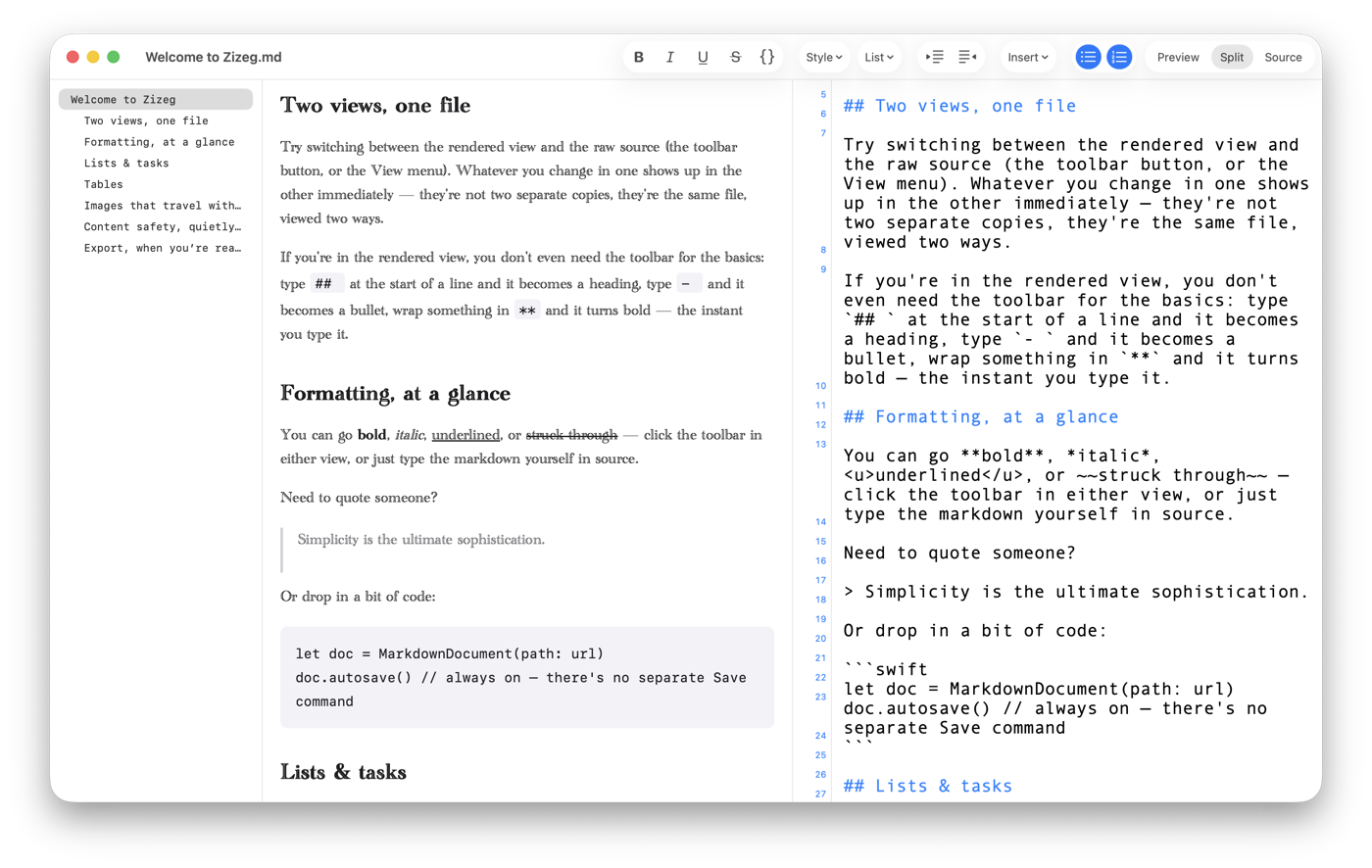
Try opening the outline, jumping to a heading, and checking its source alongside Preview. These small navigation controls are part of the everyday editing experience, not a separate workspace to set up.
Try one document you already know.
- Open a representative .md file.Choose File → Open…. Pick a file with the headings, lists, images, or tables you use regularly. If you plan to edit and want to preserve the original, make a copy first with Save As….
- Read in Preview, then choose Split.See the formatted document beside its Markdown. Click Split again to swap the pane order if you prefer Source on the other side.
- With editing unlocked, make three small changes.Correct a word, change a heading, and update a table cell. Try editing once in Preview and once in Source.
- Check the resulting file.Zizeg autosaves ordinary edits in place. See whether the editing experience and the saved Markdown fit the way you work.
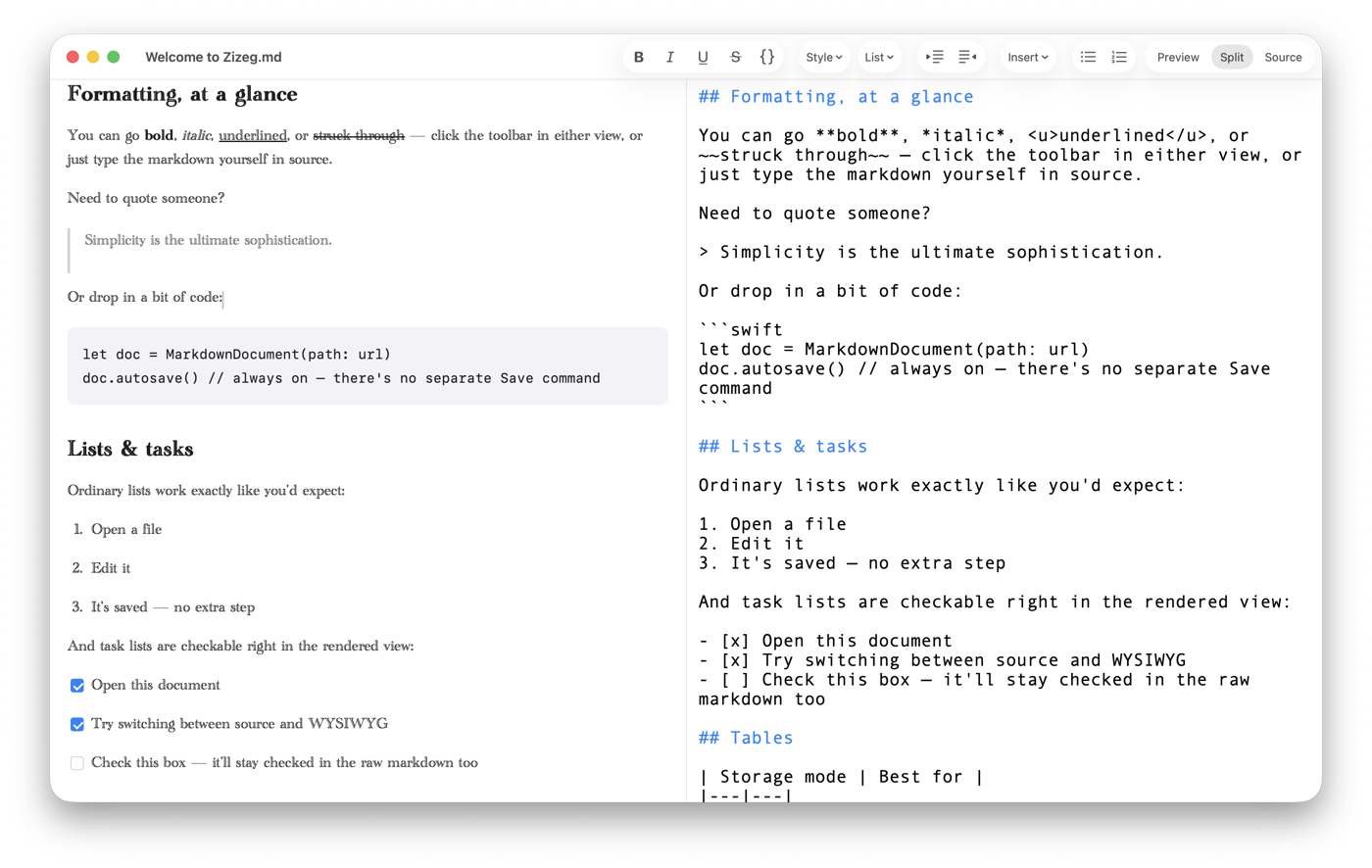
For the editing-model details, see editable Preview versus split preview. For the file workflow, see editing without a vault or workspace.
Prefer a one-time purchase? There is an option.
Zizeg is free for reading. Its Lifetime Unlock is a one-time purchase for editing and export; subscription options are also available. You can choose the model that suits you without changing your documents.
Typora also sells a one-time licence. A subscription preference alone therefore doesn’t decide between the two—compare the editing workflow and the features you actually need. Check each store for current local prices and offers.
Opening and reading are free in every view. Editing and HTML or PDF export require a one-time purchase or an active subscription.
Choose for the work you actually do.
Zizeg is a good candidate when you want native Mac document handling, ordinary Markdown files, and direct editing in both Preview and Source. A few everyday tasks are enough to see whether that combination helps you.
If your documents depend on specialized syntax or a particular export workflow, try a representative file before changing your default app. That is more useful than switching on the strength of a headline.
The broader editor comparison covers other workflow choices. This guide’s smaller question is whether Zizeg feels like the right next home for your everyday Markdown files.
Typora references checked October 18, 2026: Live Preview, Source Code Mode, and licensing. Product details and offers can change.