“Preview” doesn’t always mean the same thing.
A Markdown app can show source text, a rendered document, or both. The important question is where you can actually make changes.
| Model | What you see | Where you edit |
|---|---|---|
| Source editor | The source text and its Markdown markers, without a separate rendered pane. | Directly in the source. |
| Source with read-only preview | Source beside its formatted result. | In the source; the preview shows the result. |
| Editable rendered view | The formatted document as a single editing view. | Directly in the rendered text. |
| Source with editable Preview | Markdown source beside the formatted document. | In either pane, with changes kept in sync—as in Zizeg’s Split view. |
Split describes a layout, not an editing capability. Two panes can mean one editor plus one viewer, or two synchronized editors.
Try the same change in each model.
Imagine a short project update with a typo, a heading, and a table of owners. The final Markdown can be the same; the path to the change is different.
Correct a typo.
In a source editor, find the word in the Markdown and correct it. With a read-only preview, you may spot the typo in the formatted document, then find its source to fix it. In an editable rendered view, click the word where you noticed it and type the correction.
Turn a paragraph into a heading.
In Source, add the appropriate heading marker, such as ## . In Zizeg, place the cursor in the paragraph and choose a heading from the Style menu, or use a shortcut such as Option + Command + 1 (⌥⌘1) for Heading 1. The formatting commands work in both Preview and Source.
Change a table cell.
In Source, edit the text between the cell’s pipe separators. In an editable table, click the cell and change its text. For row, column, and alignment changes, see the visual Markdown table guide.
In Zizeg, both panes are editors.
Choose Preview to work with the formatted document, Source to work directly with Markdown, or Split to keep both visible. In either editor, you can type and edit directly, use keyboard shortcuts, or use the formatting controls above the editors and the app’s menus. Changes made in Preview or Source update the other view.
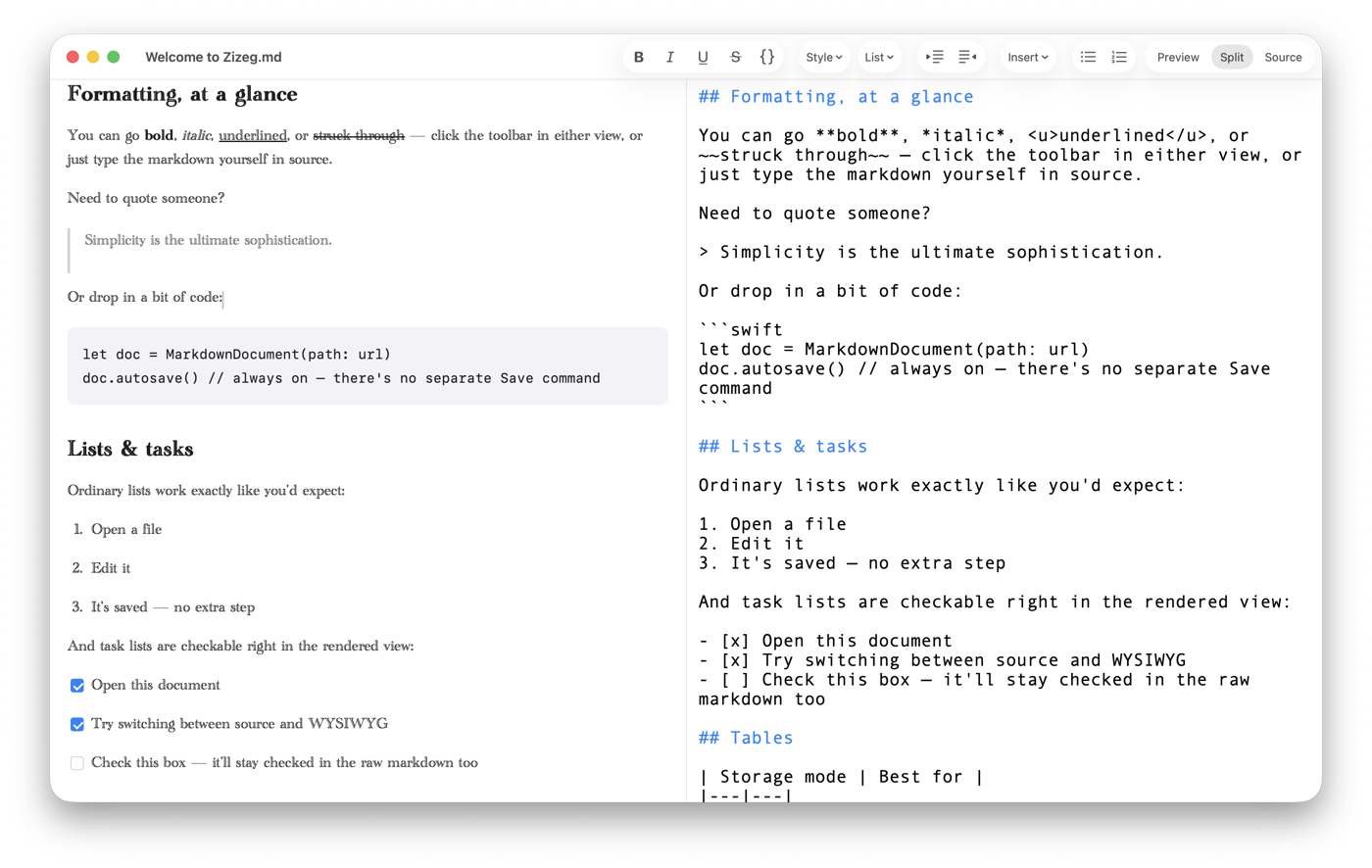
Use View → Preview (⌘1), Source (⌘2), or Split (⌘3). While Split is active, click Split again to exchange the panes. You can put Source on the left or right.
Choose Default view for new tabs under Preferences → General if you want new documents to start in your preferred mode. To scroll each pane separately, turn off Sync scroll position between split panes under Preferences → Editor.
Opening and reading are free in every view. Editing and HTML or PDF export require a one-time purchase or an active subscription.
Keep Source for the details that matter.
Visual editing is convenient for prose, headings, lists, and tables. Source is useful when you want to inspect syntax, change metadata, or control exact whitespace and Markdown markers.
Zizeg normally keeps Preview edits localized to changed lines in affected blocks. Some edits require broader reformatting, so use Source when precise syntax preservation matters. The file remains Markdown in either view.
Choose the view that makes the next edit easier.
For a quick correction in a readable report, editable Preview can save you a trip through the source. For careful markup work, Source keeps the syntax visible. Split is useful when you want to see both the document and how it is written.
You don’t need a different storage system to switch between them. Zizeg works with the same plain file. See editing a standalone Markdown file for that workflow, or compare Markdown editors when you’re choosing an app.