Keep the file where the work is.
A project plan can live beside the project. Meeting notes can stay in the meeting folder. A report can remain in Downloads until you decide where it belongs. You don’t have to reorganize those files just to change a paragraph.
A document-based Markdown editor opens the file you choose and writes changes back to that file. A workspace or vault offers a different approach: bringing a collection of notes together for browsing, linking, and search. Both can be useful; a one-off edit often needs only the document.
An ordinary project folder
Client project/
├── Brief.md
├── Brief-assets/
│   └── diagram.png
├── Estimate.pdf
└── Reference notes/
Open Brief.md, make your change, and keep the folder structure. There’s no separate import or library copy.
Open the file. Make the change.
- Open your existing document.Choose File → Open… in Zizeg and select the
.mdor.markdownfile. If Zizeg is your default.mdapp, double-clicking the file in Finder is enough. - Choose the view that suits the edit.Use Preview to edit the formatted document, Source for direct control over Markdown, or Split for both. If Preview or Split is your default, the formatted view is already there.
- Change the document in place.Correct the paragraph, update the list, or edit the table. Zizeg autosaves ordinary edits to the same file after a short pause in typing; there’s no separate Save command.
Opening and reading are free. Editing and HTML or PDF export require a one-time purchase or an active subscription.
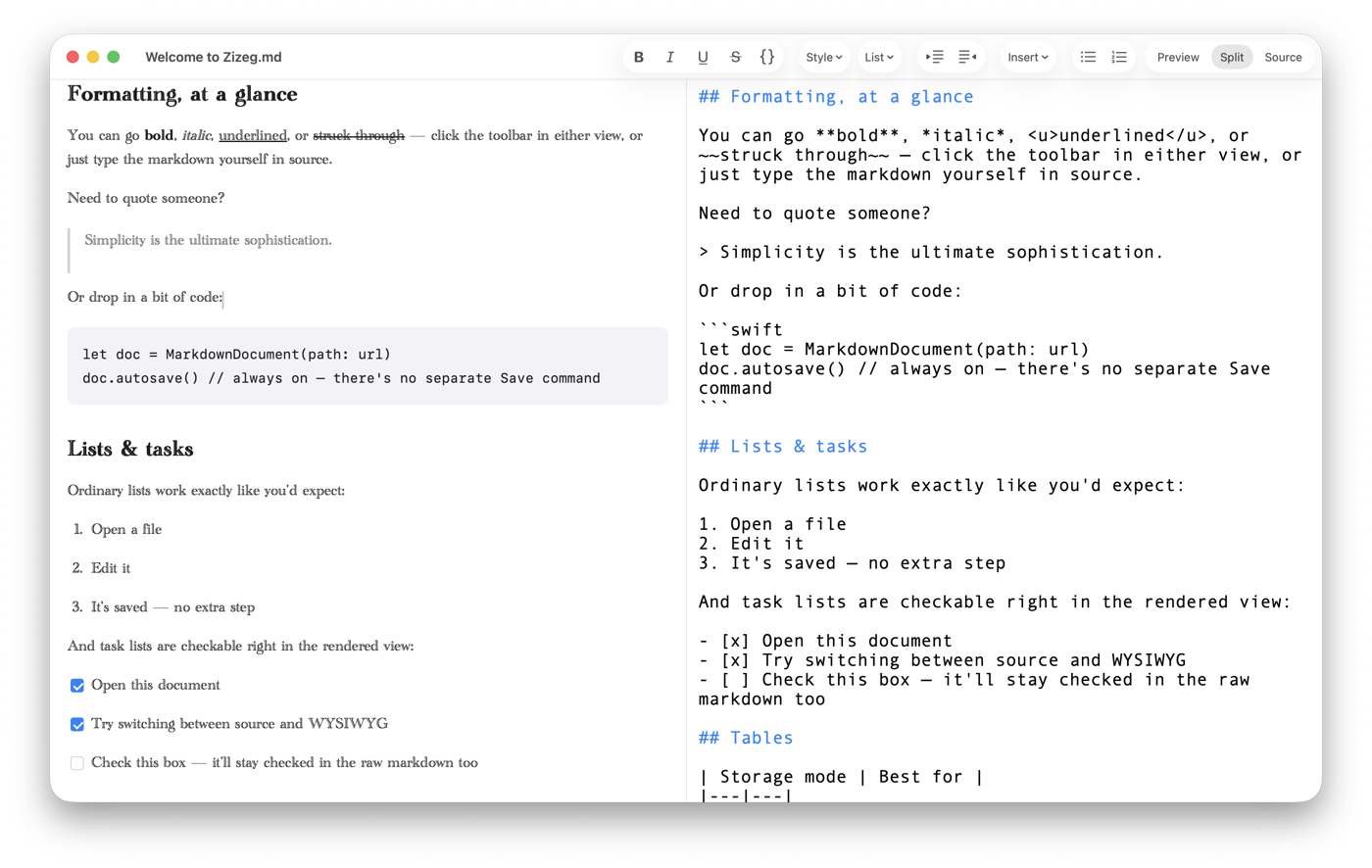
Use View → Preview (⌘1), Source (⌘2), or Split (⌘3). Clicking Split again while it’s active swaps the panes, so you can put Source on either side. For a worked comparison, see editable Preview versus split preview.
Want a separate version? Make a copy first.
If you’re trying an edit or want to preserve the original, choose File → Save As… (⇧⌘S) before making changes. Give the copy its own name or location, then work on that version.
Save As also lets you choose Assets Folder or Base64 image storage. When that choice or the location changes, Zizeg prepares the new copy and adjusts its image references without changing the original.
Plain Markdown can still have companions.
The text is in the .md file, but images may be stored separately. In the example above, Brief.md can point to Brief-assets/diagram.png. Keep those relative paths in mind when moving or sending the document.
If your file came from another app, you can open it where it is. Zizeg may ask for access to the document’s containing folder to work with local assets. You don’t need to adopt a new folder structure just to read the file.
Use tabs or independent windows.
Working without a vault doesn’t mean being limited to one document. Zizeg can open files in native Mac tabs, or you can give a document its own window with Window → Move Tab to New Window.
To make future documents open in separate windows, turn off Open new documents as tabs under Preferences → General. Your files remain independent either way.
Choose a workspace when you need a collection.
If your main job is connecting hundreds of notes, searching a knowledge base, or relying on a particular app’s plugins, a workspace-based tool may fit you well. You can keep that setup and use a document editor for the Markdown files outside it.
For a quick correction, a client document, or a plan kept beside a project, opening the actual file is often the simpler route. There’s nothing to migrate: the result is still Markdown, ready for the next person or app that uses it.
Compare Markdown editing workflows, or make Zizeg the default for your .md files if you want the same document workflow on double-click.