What is a .md file?
The .md extension is short for Markdown: ordinary text with a few formatting marks. A line starting with # becomes a heading; asterisks can make text bold; a dash starts a list. The file stays readable as text, but a Markdown app turns those marks into formatting.
You might receive one as a README, a set of meeting notes, a project plan, or a report written with an AI assistant. Files ending in .markdown use the same idea.
In the file
# Project notes

A **small update** for Friday.

- Read the draft
- Share your feedback
As a document
Project notes
A small update for Friday.
- Read the draft
- Share your feedback
Just need the text? Use TextEdit.
You don’t need a dedicated Markdown app to read the words. Open TextEdit, choose File → Open…, and select your file. You’ll see the Markdown source, including its formatting marks.
That’s enough for a quick look at a short note. For a longer report, a table, or a document with images, a rendered view is usually easier to follow.
Want the formatting? Open it in Zizeg.
Zizeg is a native Mac Markdown reader and editor. Open the file you already have—there’s no vault to create and no import step.
- Get Zizeg from the Mac App Store.Opening and reading Markdown documents is free, with no time limit.
- Open your Markdown file.If Zizeg is your default app for
.mdfiles, just double-click the file in Finder. Otherwise, choose File → Open… in Zizeg and select your.mdor.markdownfile. You can also use Open… in Zizeg’s Start Window. - Read in Preview or Split.If Preview or Split is your default viewing mode, your file already opens as a formatted document—there’s nothing else to select. Otherwise, use the toolbar’s view control or choose View → Preview (⌘1). You can set Default view for new tabs under Zizeg → Preferences… → General.
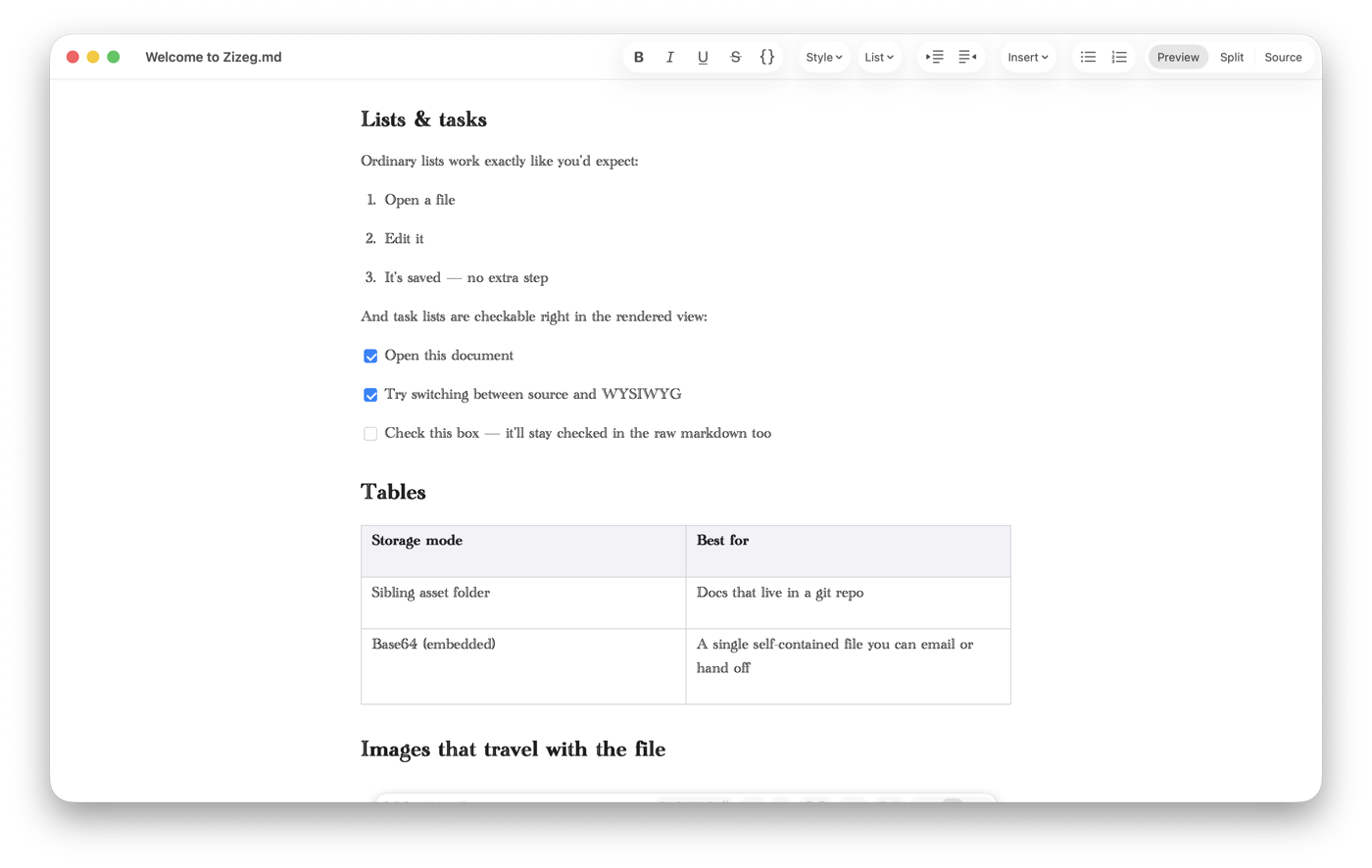
Want to see how it works? Choose Split (⌘3) to place the rendered document beside its source. Click Split again while it’s active to swap the panes: Source on the left and Preview on the right, or the other way around. Each further click swaps them back. Choose Source (⌘2) whenever you want the raw text.
Reading is free in every view. Editing and HTML or PDF export require a one-time purchase or an active subscription.
Your file stays a Markdown file.
Reading a document doesn’t require converting it or moving it into a library. Keep it in Downloads, a project folder, or wherever it belongs. Zizeg works with the ordinary file on your Mac.
If the document came with an image folder, keep that folder beside it. Markdown often links to separate images, so moving only the .md file can leave pictures behind.
A few common questions.
Why does double-clicking open Xcode or another app?
Your Mac already has a default app for that file type. You can still open the file from inside Zizeg. To change the default for .md files, choose Zizeg → Preferences… → General → Set as Default App for .md Files. For the Finder route and troubleshooting, see change the default Markdown app on Mac.
Should I rename the file to .txt?
There’s no need. Markdown is already text, and keeping the .md extension helps apps recognize it as Markdown.
Can I make a small correction?
Yes. With editing unlocked, you can edit the formatted Preview or work directly in Source. Both views stay in sync in the same .md file.
Will every Markdown file look exactly the same?
Apps can differ in styling and support for specialized syntax. Zizeg supports common Markdown formatting, including headings, lists, tables, images, and code blocks.
For the built-in plain-text option, see Apple’s guide to opening documents in TextEdit.